
SwiSekai: Designing Fluid macOS Layouts
“A native macOS companion app designed to sit perfectly next to Xcode. Features 'Tailwind-style' responsive layouts for seamless side-by-side learning.”
How might we stop the constant context-switching between tutorials and Xcode on a single screen?
A responsive macOS companion app designed to live in the sidebar, automatically adapting content to fit narrow 'side-by-side' layouts.
Unlocked 'dual-monitor' efficiency on a single laptop, keeping learners in the flow state without the fatigue of constant Command-Tabbing.
Overview
SwiSekai makes learning Swift engaging through gamification and hands-on projects. Designed as a native macOS app that works alongside Xcode, it combines Duolingo-style progression with practical coding exercises.
Key Features:
- Level map progression
- Dashboard analytics
- Bite-sized modules
- Hands-on projects
- AI assistant
Background
The Problem: Traditional Swift tutorials are text-heavy and boring. Xcode alone overwhelms beginners. Learners need an engaging bridge between theory and practice.
Goal: Create a gamified, native macOS learning experience that makes Swift approachable while preparing users for real development.
Empathize
Pain Points Identified
User Needs
Key Insight
"I tried 100 Days of Swift, but it was boring. I prefer interactive learning—building small terminal projects where I see results. Just reading tutorials doesn't stick."
This validated our focus on learning by building with practical projects.
Desk research
Analyzed: Duolingo, fakeclients.com, Xcode Playgrounds
Key Findings:
Insight: Visual progress + hands-on practice = sustained motivation
User interview
Participants: 5 aspiring developers (students, career changers, hobbyists)
Key Findings
What users want:
What makes them quit:
Decision: Prioritize hands-on projects and always-available AI companion.
Ideate
Design Principles
Progressive Disclosure → Introduce complexity gradually
Playful Professionalism → Fun yet credible
Native-First → Embrace macOS design language
Adaptive Experience → Work alongside Xcode seamlessly
Feature Set
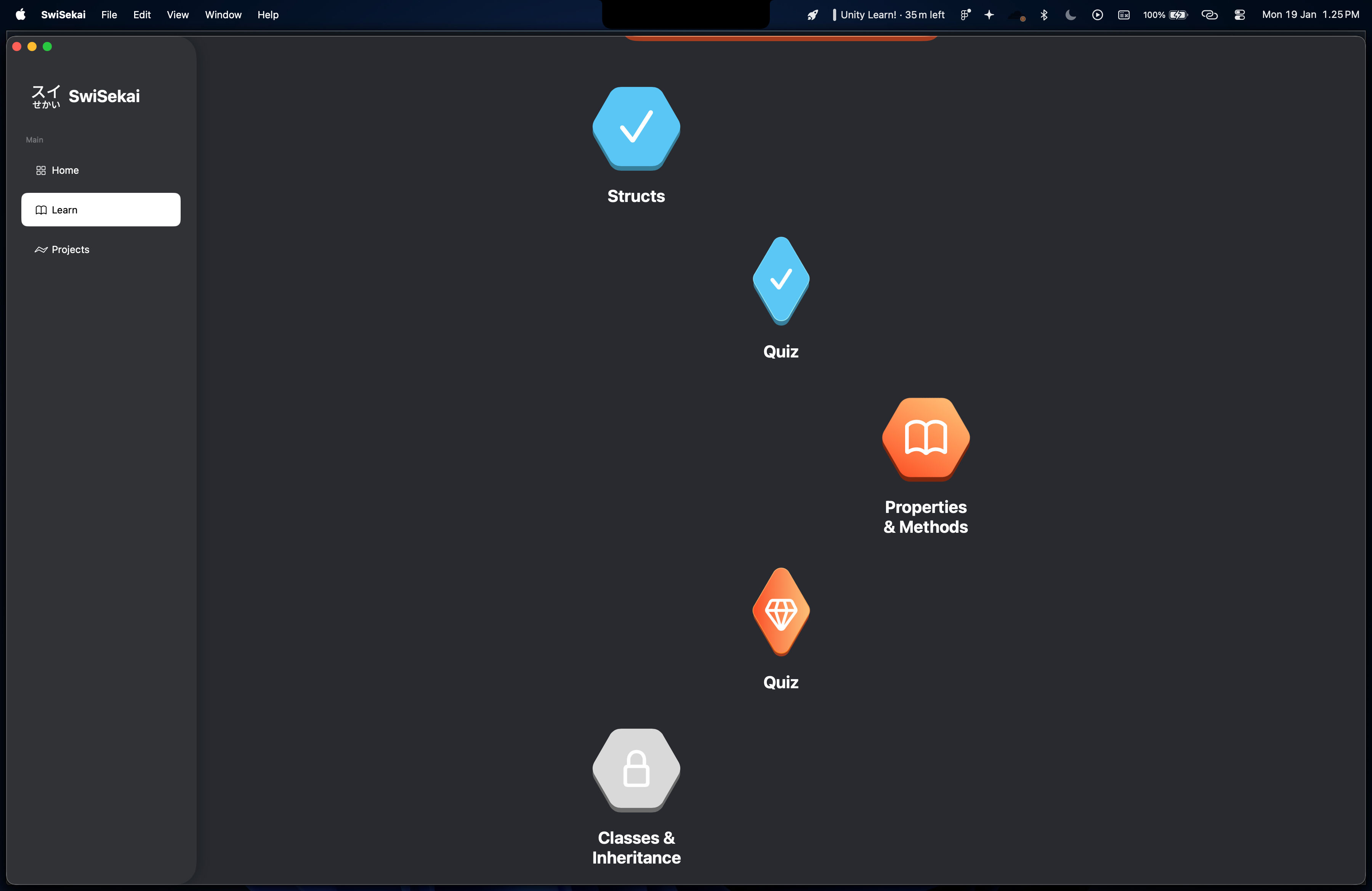
1. Duolingo-Inspired Level Map
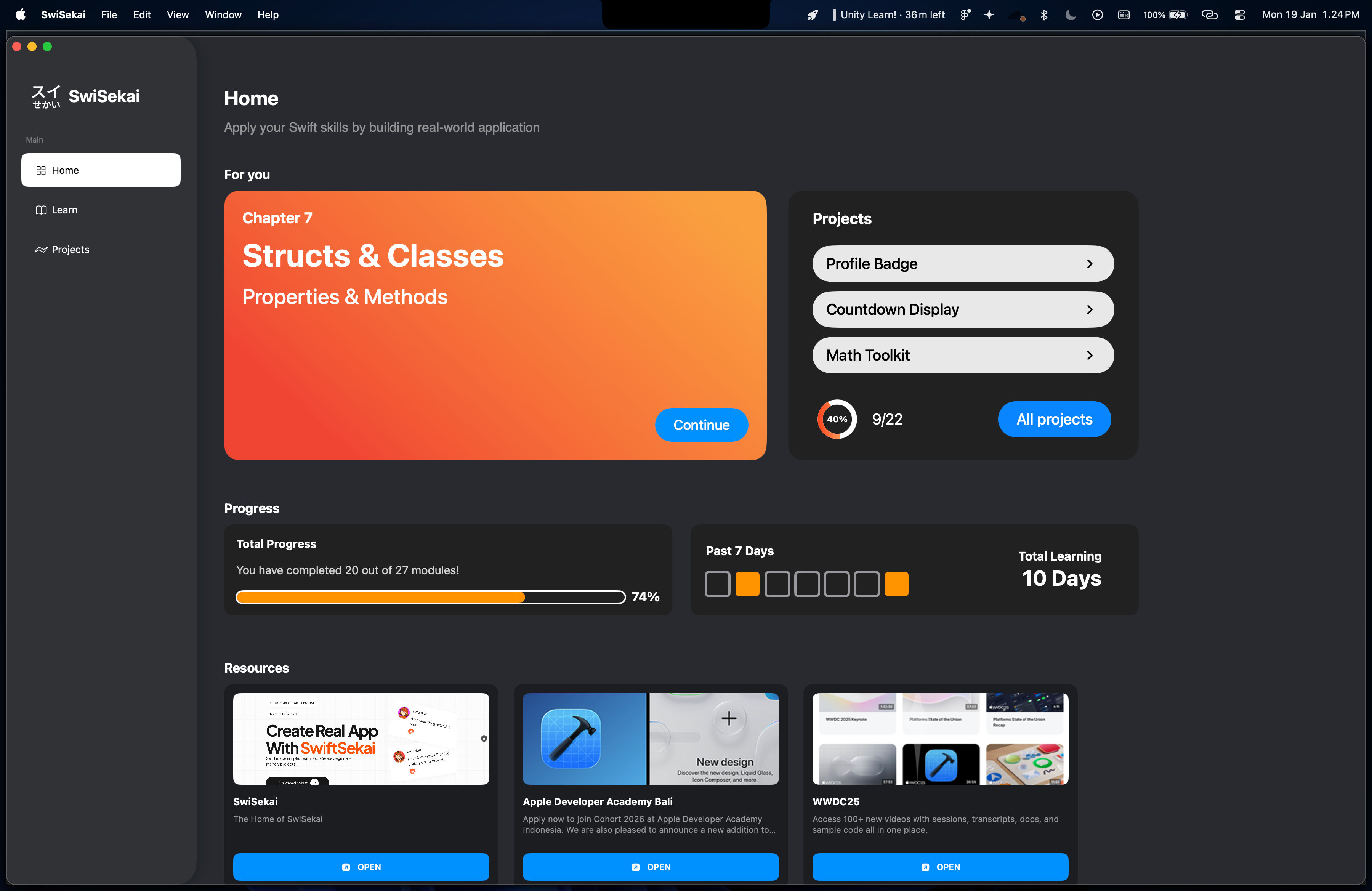
2. Glanceable Dashboard
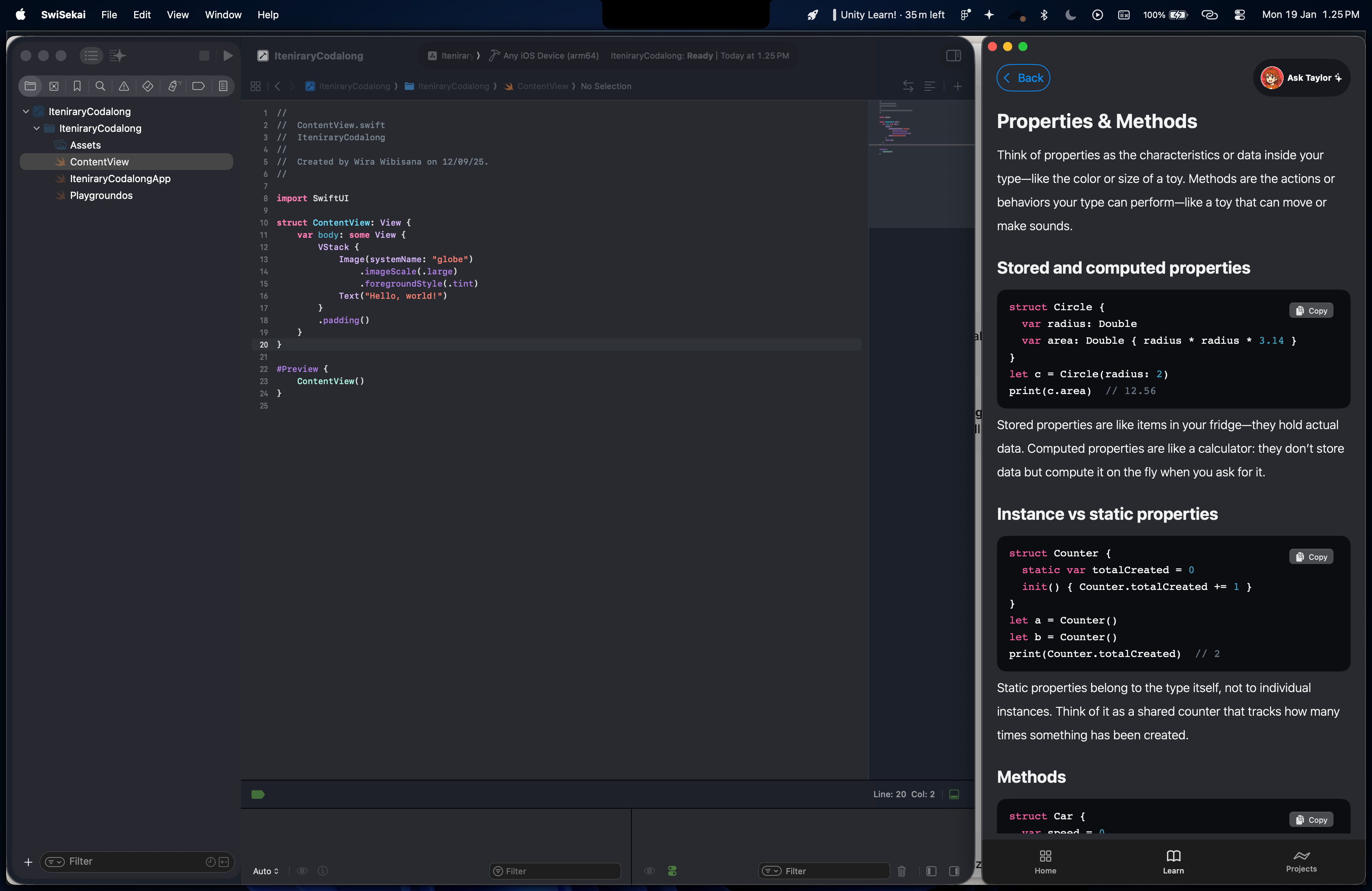
3. Concise Modules
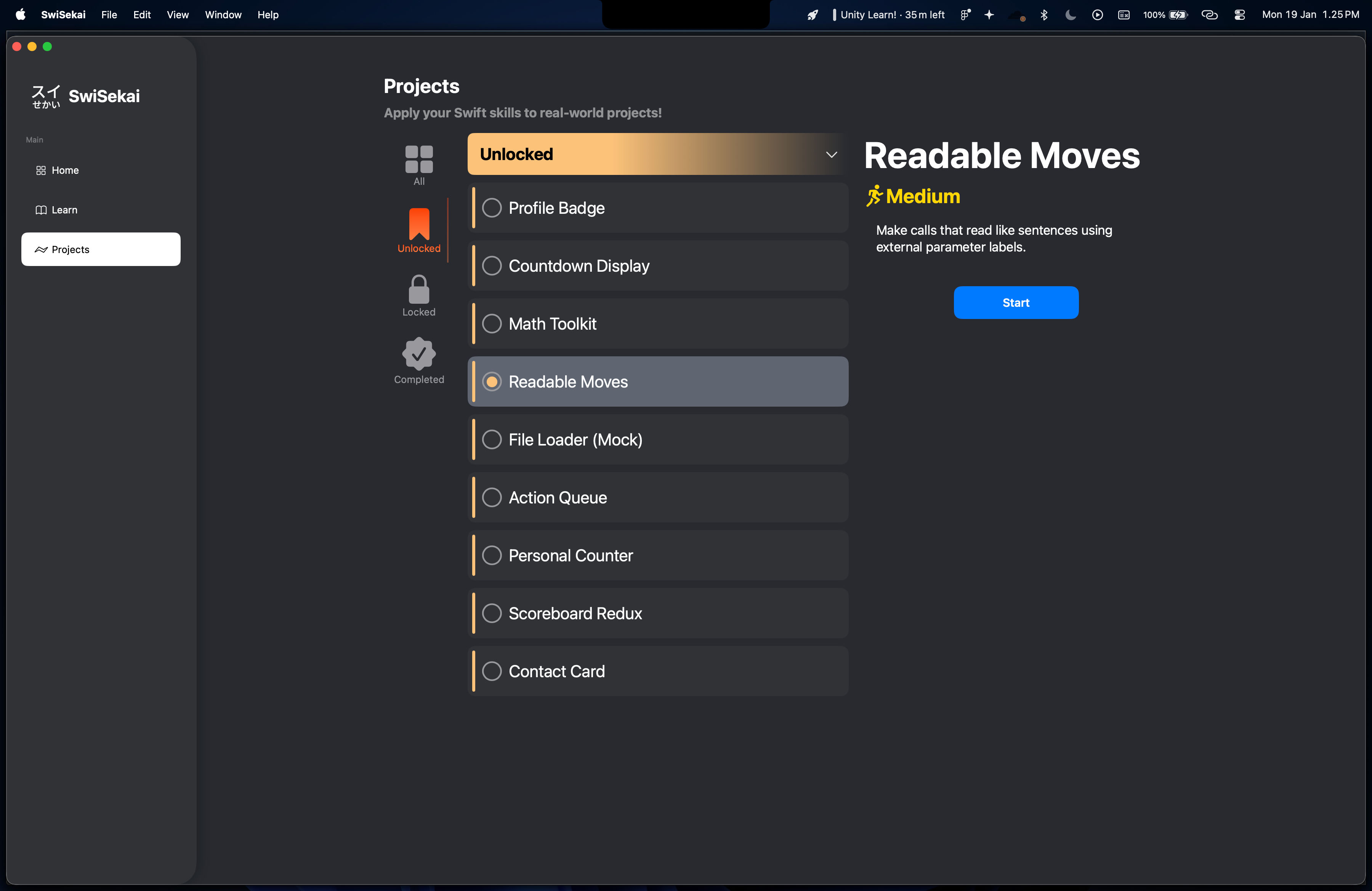
4. Practical Projects
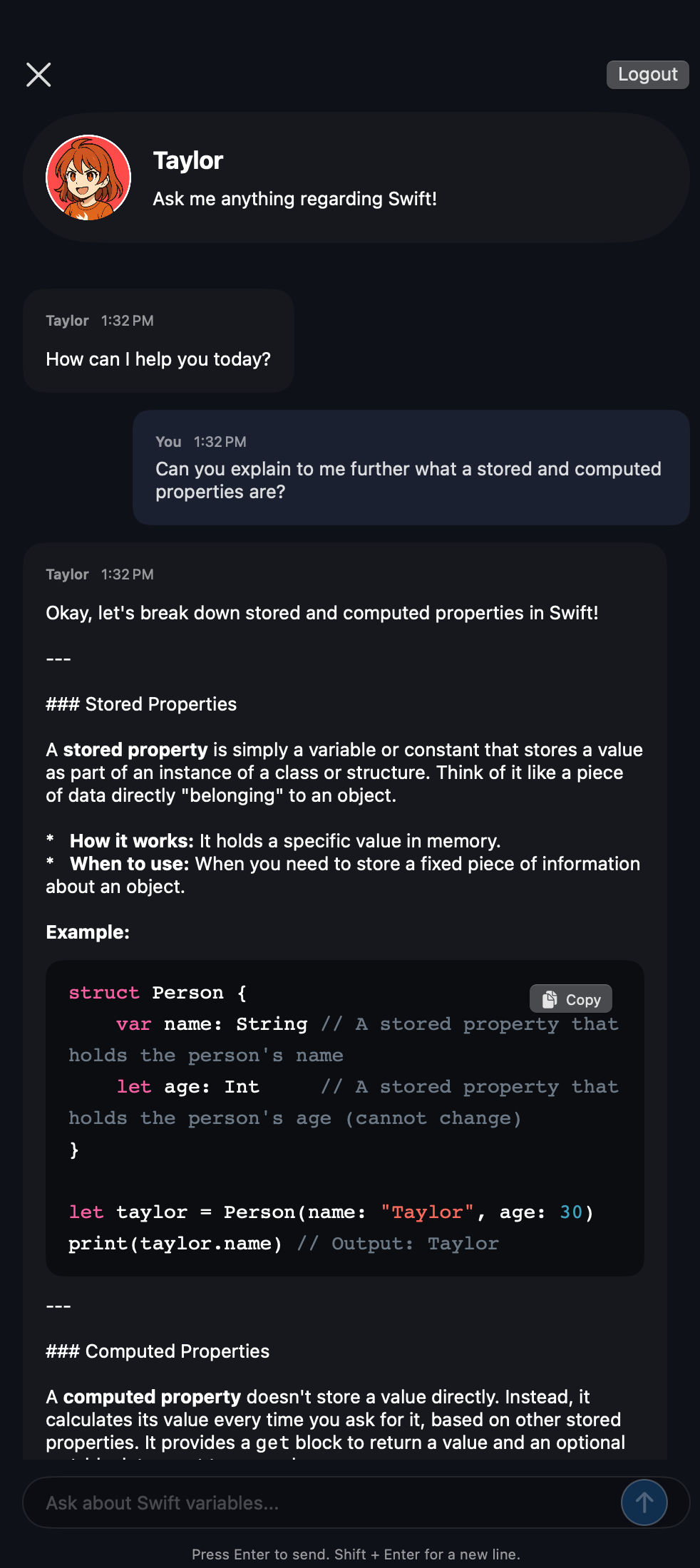
5. AI Learning Companion
Prototype
Design System
Visual Language: Apple Human Interface Guidelines compliance
Responsive: Tailwind-inspired adaptive layouts for macOS
Optimized for: Side-by-side usage with Xcode
Components: Native macOS patterns • Fluid window resizing • {color/typography choices}
Usability Testing
Iterations: 3 rounds with 11
Key Changes:
Final result
Core Experience
Level Map → Engaging progression through Swift concepts
Dashboard → At-a-glance learning stats and streaks
Modules → Bite-sized lessons with interactive exercises
Projects → Real-world building at milestone achievements
AI Assistant → On-demand Swift expertise
Technical Approach
Native macOS → {SwiftUI/AppKit} following Apple HIG
Responsive Design → Seamless compact-to-fullscreen adaptation
Side-by-side → Optimized for split-view with Xcode
Reflections
Impact
✓ Gamification drives engagement → A lot of participants especially students were engaged with our exhibition booth.
✓ Native design builds trust → Users felt professional, credible experience
✓ AI reduces friction → Significant decrease in frustration points
Challenges & Solutions
Challenge: Balancing simplicity with comprehensive content
Solution: Keep reminding ourselves "Is this truly needed or just look nice?"
Challenge: Adapting responsive design to desktop
Solution: Utilize native Apple technology for seamless interaction.
Key Learnings
Desktop ≠ Mobile/Web → Desktop design is very different with mobile as the text size will be not as big and there should be expectation that user will resize the app window.
Apple's Ecosystem → Deepened understanding of native design patterns
Designer-Developer Collaboration → Understanding technical limitations improves design process result.
Personal Growth
My first desktop product taught me deeper contextual product utilization. Designing within Apple's ecosystem had me excited for an idea of an app that works on all Apple devices.